7. Protocol
7.1. Choose protocol
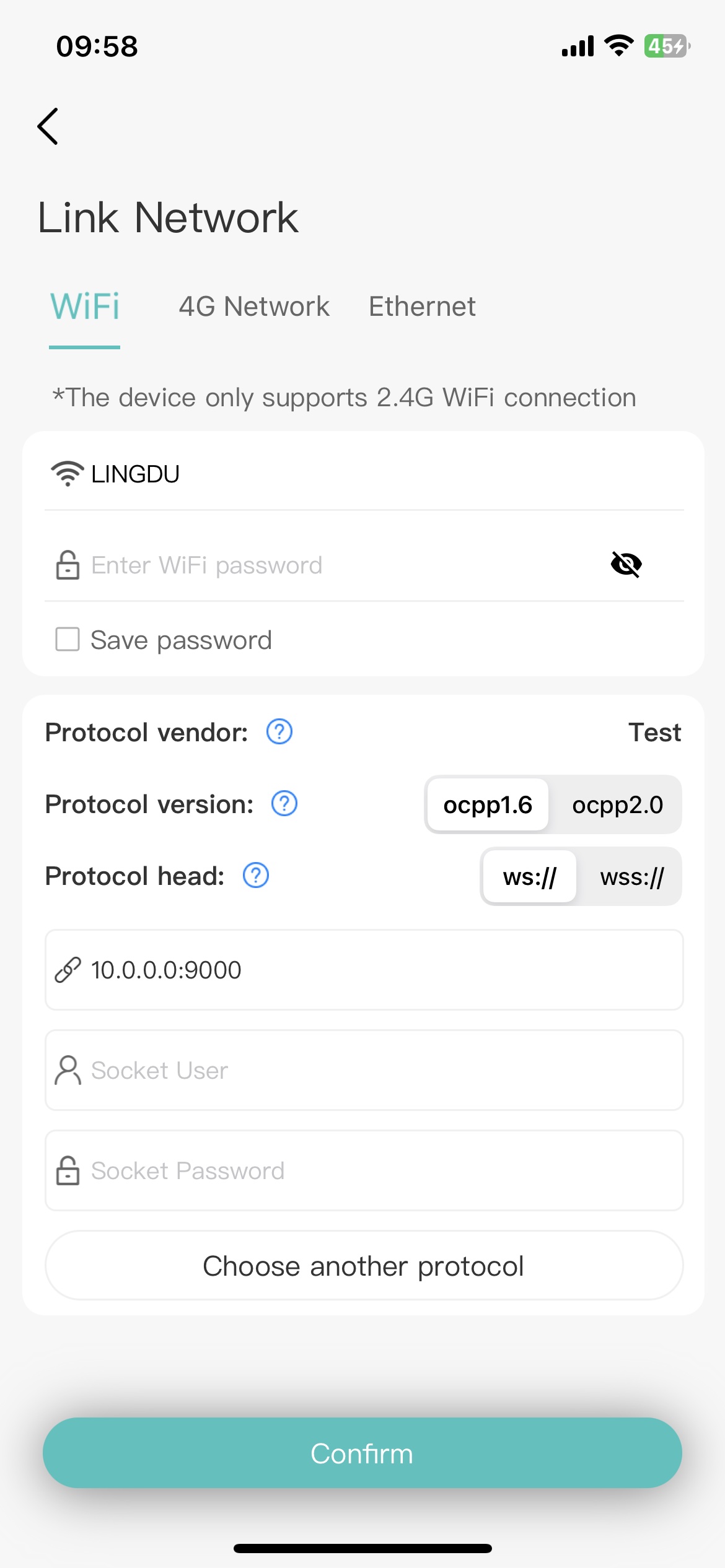
After clicking “Choose another protocol”, you will enter this page and use the Websocket address provided by other OCPP servers to connect.
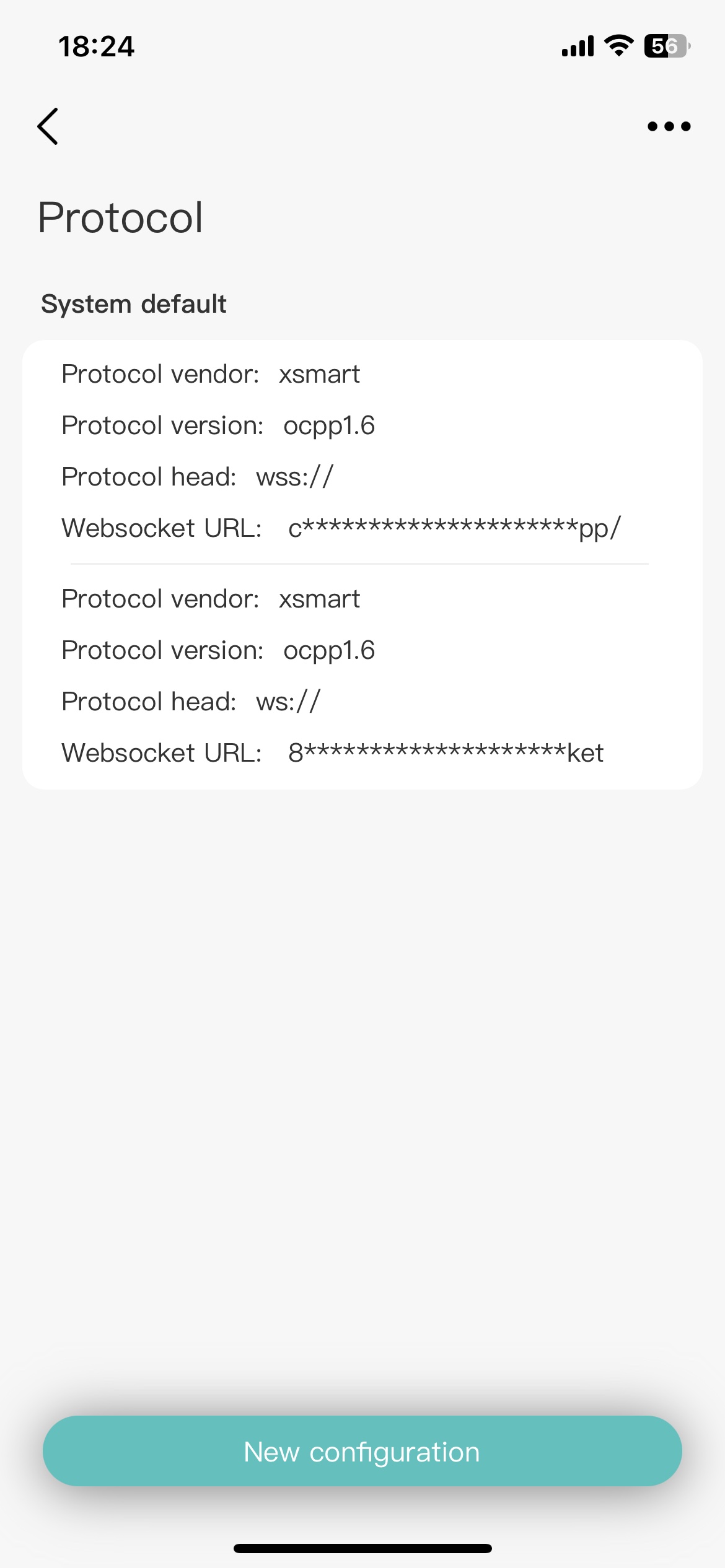
We provide you with two default addresses, where “wss://” is an encrypted connection and “ws://” is a non-encrypted connection.
7.2. Add custom
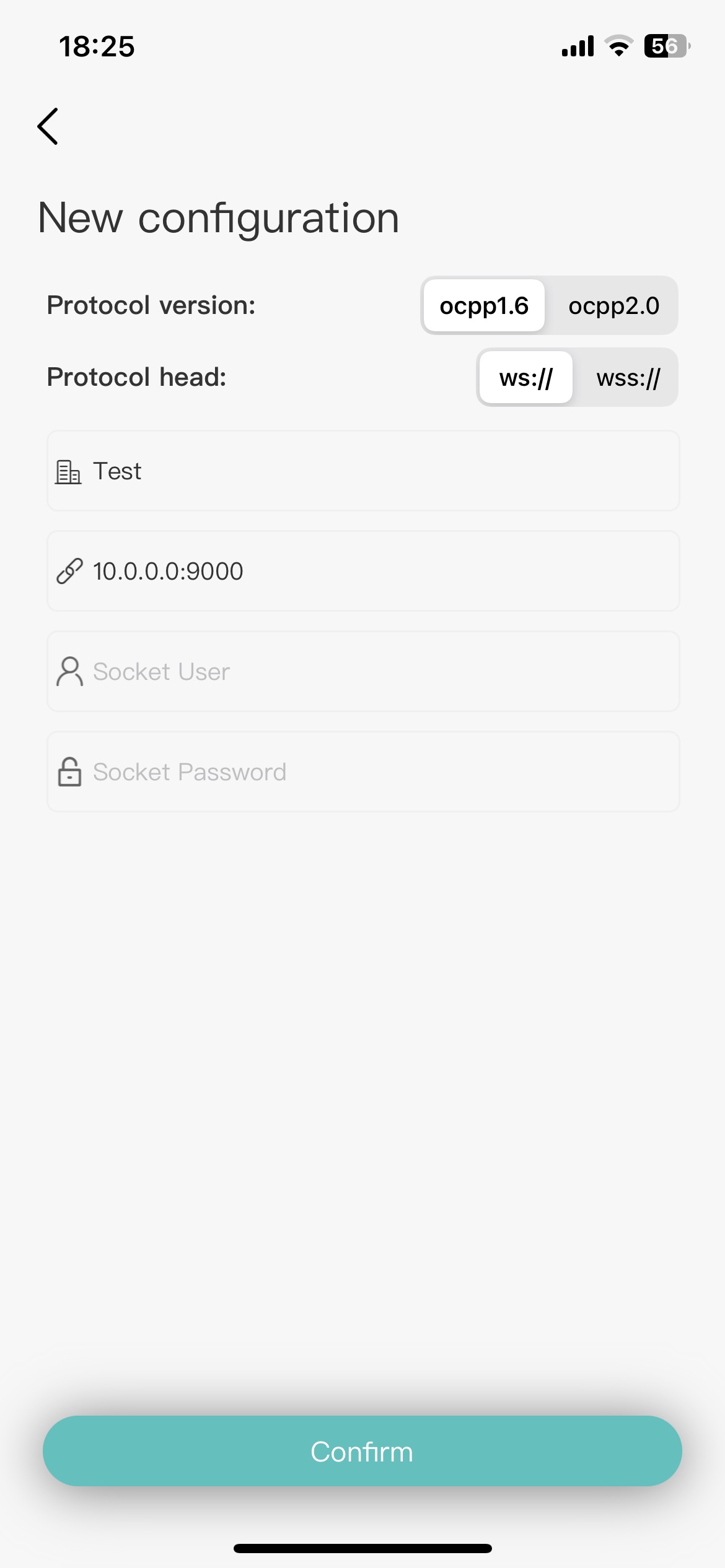
After clicking “New configuration”, you can fill in the Websocket address provided by other OCPP servers.
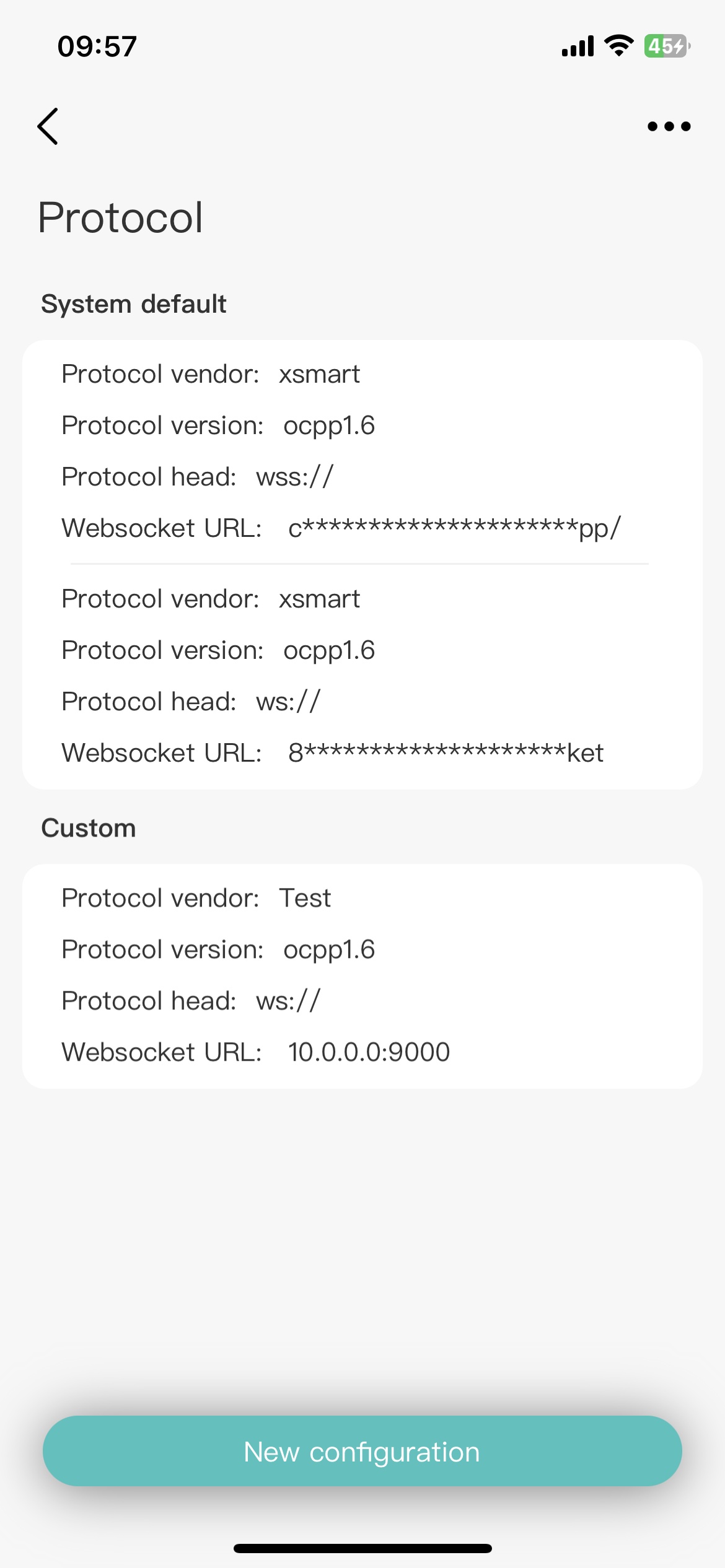
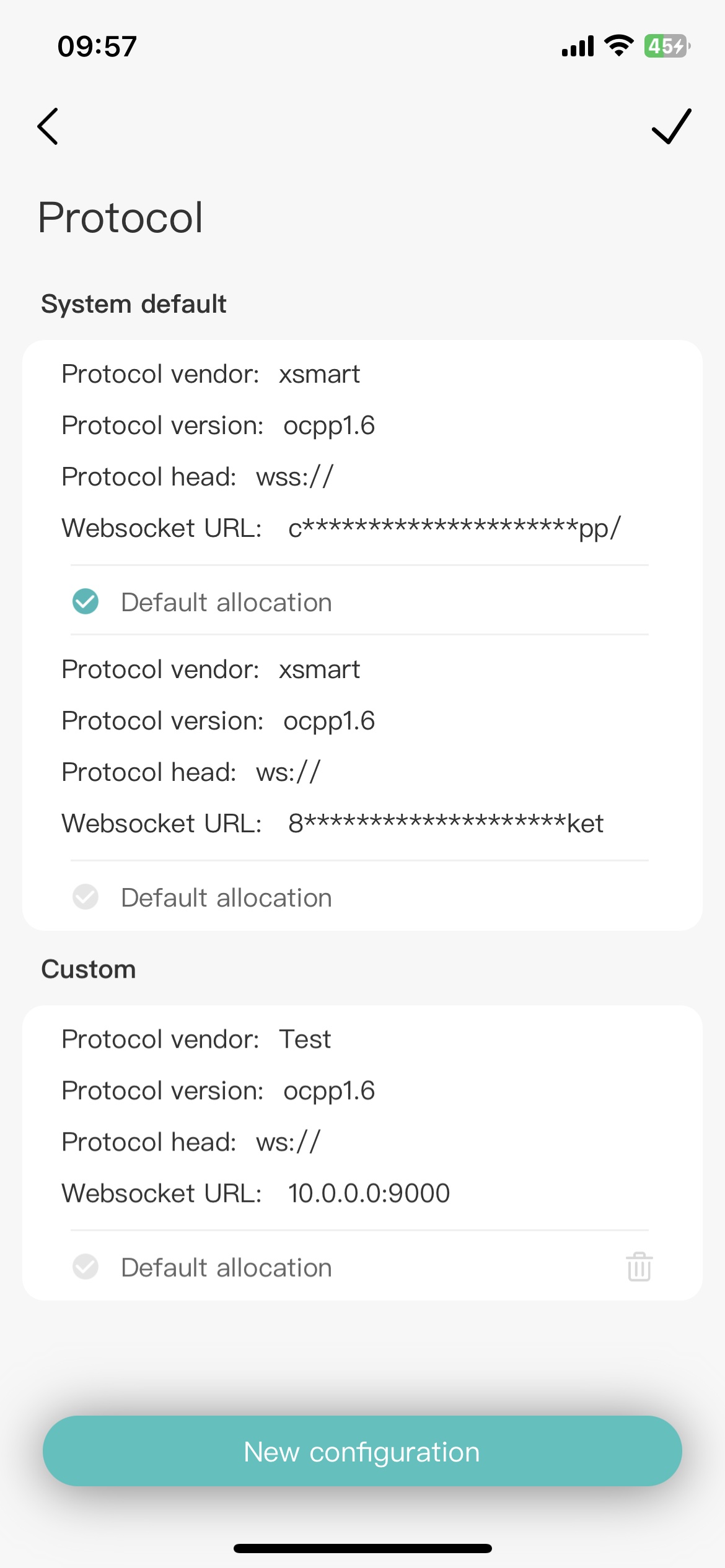
After the addition is complete, you can see the custom configuration in the Protocol list. Click the button in the upper right corner to enter the “Edit” state. You can set a configuration as the default or delete the custom configuration.
7.3. Use custom
Click the custom configuration, you can use the custom configuration to configure the device network, and the follow-up process can be found in the Config chapter.
Note: We also provide you with a demonstration video.
7.4. Example
7.4.1. Term
Name |
Description |
|---|---|
Protocol Vendor |
Server name or other convenient name to label this server |
Protocol Version |
OCPP protocol version supported by the server(OCPP1.6/OCPP2.0) |
Protocol Head |
wss for encrypted connection. ws for non-encrypted connection. |
Websocket URL |
Socket communication address and port provided by the server |
Websocket User |
Socket communication user name provided by the server |
Websocket Password |
Socket communication password provided by the server |
7.4.2. Connected example
ugv
Name |
Description |
|---|---|
Protocol Vendor |
ugv |
Protocol Version |
ocpp1.6 |
Protocol Head |
wss:// |
Websocket URL |
test.ugv.ua:7000 |
Websocket User |
|
Websocket Password |
The server needs to enter the corresponding charging pile number to connect.
sg
Name |
Description |
|---|---|
Protocol Vendor |
sg |
Protocol Version |
ocpp1.6 |
Protocol Head |
wss:// |
Websocket URL |
sg.ocpp.sock8.io:9000/OCPP16/ |
Websocket User |
|
Websocket Password |
emobility
Name |
Description |
|---|---|
Protocol Vendor |
cpc |
Protocol Version |
ocpp1.6 |
Protocol Head |
wss:// |
Websocket URL |
cpc.emobility.megatel.si:80/megatel |
Websocket User |
|
Websocket Password |
The server needs to enter the corresponding charging pile number to connect.
ricaricarapida
Name |
Description |
|---|---|
Protocol Vendor |
ricaricarapida |
Protocol Version |
ocpp1.6 |
Protocol Head |
wss:// |
Websocket URL |
my.ricaricarapida.com:8443 |
Websocket User |
|
Websocket Password |
cs
Name |
Description |
|---|---|
Protocol Vendor |
cs |
Protocol Version |
ocpp1.6 |
Protocol Head |
wss:// |
Websocket URL |
cs-test.use-move.com/ocpp/ |
Websocket User |
|
Websocket Password |
tuya
Name |
Description |
|---|---|
Protocol Vendor |
tuya |
Protocol Version |
ocpp1.6 |
Protocol Head |
wss:// |
Websocket URL |
galaxygw.iot2cn.com:9000 |
Websocket User |
de**********QT1 |
Websocket Password |
eQ**********5Pm |
You need to obtain the Sokcket account and password on the platform.
spirii
Name |
Description |
|---|---|
Protocol Vendor |
spirii |
Protocol Version |
ocpp1.6 |
Protocol Head |
wss:// |
Websocket URL |
connect.spirii.dk:443 |
Websocket User |
|
Websocket Password |
The server needs to enter the corresponding charging pile number to connect.
volttime
Name |
Description |
|---|---|
Protocol Vendor |
volttime |
Protocol Version |
ocpp1.6 |
Protocol Head |
wss:// |
Websocket URL |
proxy.volttime.com/v1 |
Websocket User |
|
Websocket Password |
The server needs to enter the corresponding charging pile number to connect.
ocpp-toolkit-api
Name |
Description |
|---|---|
Protocol Vendor |
toolkit |
Protocol Version |
ocpp1.6 |
Protocol Head |
wss:// |
Websocket URL |
ocpp-toolkit-api.monta.app:443 |
Websocket User |
|
Websocket Password |
You need to enter the corresponding charging station number on the platform to remotely control it.
Fuuse
Name |
Description |
|---|---|
Protocol Vendor |
fuuse |
Protocol Version |
ocpp1.6 |
Protocol Head |
wss:// |
Websocket URL |
hw.fuuse.io:9999 |
Websocket User |
|
Websocket Password |