3. Professional Issues
3.1. GetConfiguration cannot pull the manufacturer-defined key?
The default principle of system design is: do not actively return the manufacturer’s customized key.
If you need to obtain the corresponding Key value, you need to pull it explicitly. Take pulling Websocket configuration information as an example:
Message sent by server
"GetConfiguration",{"key":["VendorWebsocketSettings"]}
The message returned by the stub is
"configurationKey":[{"key":"VendorWebsocketSettings","readonly":false,"value":"WS,cpam3.x-cheng.net,443,/ocpp/,socpp1.6,,,"}]
3.2. How to give an alias to a pile ID via OCPP?
Use ChangeConfiguration.req in ocpp1.6 to modify the pile alias. The alias is used for **backend management and identification of charging piles.
3.2.1. Use VendorChargeBoxId to modify the pile alias
The default value is the pile number, which can be set to any string not greater than 63 bits. If the value is empty, the default value will be restored.
Modifying VendorChargeBoxId does not affect any functions, it is just a backup value;
For example, to modify the charging pile alias to xxxxxxxxxx, refer to the following interactive process:
Send command
[2,"587f59e3-3f3f-4972-b09a-b2859c8d823b","ChangeConfiguration",{"value":"xxxxxxxxxx","key":"VendorChargeBoxId"}]
Response from the stub (success)
[3, "587f59e3-3f3f-4972-b09a-b2859c8d823b", {"status":"Accepted"}]
Response from the stub (success)
[3, "587f59e3-3f3f-4972-b09a-b2859c8d823b", {"status":"Rejected"}]
Restore default values:
Send command
[2,"587f59e3-3f3f-4972-b09a-b2859c8d823b","ChangeConfiguration",{"value":"","key":"VendorChargeBoxId"}]
Response from the stub (success)
[3, "587f59e3-3f3f-4972-b09a-b2859c8d823b", {"status":"Accepted"}]
Troubleshooting of setting failure:
It may be that the string is larger than 63 characters.
3.2.2. Use ChargePointName to modify the pile SN
The default value is the pile number, which can be set to any string not greater than 63 bits. If the value is empty, the default value will be restored.
Modifying ChargePointName will affect the ID for connecting to the ws server, and will also invalidate the factory-installed offline IC card.
The modification does not affect the Bluetooth broadcast suffix;
The setting format is as follows (change the xxxxxxxxxx part to the value you want to set):
Send command
[2,"587f59e3-3f3f-4972-b09a-b2859c8d823b","ChangeConfiguration",{"value":"xxxxxxxxxx","key":"VendorChargePointName"}]
Response from the stub (success)
[3, "587f59e3-3f3f-4972-b09a-b2859c8d823b", {"status":"Accepted"}]
Response from the stub (success)
[3, "587f59e3-3f3f-4972-b09a-b2859c8d823b", {"status":"Rejected"}]
Troubleshooting of setting failure:
The reason why the setting fails may be that the string is larger than 63 characters.
Important
When reporting a problem, you need to provide the original SN value, not the modified value.
3.2.3. Use UrlHasServerToken to control the URL
The default value of this key is false. When connecting to a Websocket server, the stake number will be automatically added to the end of the URL. For example, if the stake number is 123456789 and the server address is cpam3.x-cheng.net/ocpp, the URL to connect to the server is /ocpp/123456789;
When set to true, when connecting to the WebSocket server, only the URL sent by the configuration network is used to link to the server without appending the pile number. For example, if the pile number is 123456789 and the server address is cpam3.x-cheng.net/ocpp, the URL to connect to the server would be /ocpp/.
3.3. How to change websocket via OCPP custom key?
Use ChangeConfiguration.req in ocpp1.6 to change Websocket by customizing Key: VendorWebsocketSettings.
Customize Websocket settings, the default reference format is as follows (fixed 7, separate content units):
WS,cpam3.x-cheng.net,443,/ocpp/,socpp1.6,,,
Here is the explanation:
Fixed type character: WS;
Server address;
Server port;
The URL of the server to connect to;
Server protocol type: ws link is configured as ocpp1.6, wss link is configured as socpp1.6;
Websocket username;
Websocket user password.
3.3.1. For example, the encrypted link is modified to wss://cpam3.x-cheng.net/ocpp, and the port number is 443
Send command
[2,"4e61badb-cdfc-4d68-9f0b-756f9a71701e","ChangeConfiguration",{"value":"WS,cpam3.x-cheng.net,443,/ocpp/,socpp1.6,,,","key":"VendorWebsocketSettings"}]
Response from the stub (success)
[3, "4e61badb-cdfc-4d68-9f0b-756f9a71701e", {"status":"Accepted"}]
3.3.2. For example, the non-encrypted link is modified to ws://cpam3.x-cheng.net/ocpp, and the link with port number 80 is
Send command
[2,"4e61badb-cdfc-4d68-9f0b-756f9a71701e","ChangeConfiguration",{"value":"WS,cpam3.x-cheng.net,80,/ocpp/,ocpp1.6,,,","key":"VendorWebsocketSettings"}]
Response from the stub (success)
[3, "4e61badb-cdfc-4d68-9f0b-756f9a71701e", {"status":"Accepted"}]
Important
Make sure the configuration is correct, otherwise the pile will not be able to connect to the server and you will need to use Bluetooth to reconfigure the network on site.
3.4. How to disable Plug and Charge mode via OCPP?
Use ChangeConfiguration.req in ocpp1.6 and set the custom Key: VendorDirectWorkMode to false to disable plug-and-charge
Modify the command as follows:
Send command
[2,"7e952213-25ee-4b09-b92e-3c4f04c9ff89","ChangeConfiguration",{"value":"false","key":"VendorDirectWorkMode"}]
Response from the stub (success)
[3, "7e952213-25ee-4b09-b92e-3c4f04c9ff89", {"status":"Accepted"}]
3.5. How to disable offline IC card via OCPP?
Disable offline IC card by disabling local authentication and offline cache functions.
3.5.4. Set AllowOfflineTxForUnknownId to false
Modify the command as follows:
Send command
[2,"7e952213-25ee-4b09-b92e-3c4f04c9ff89","ChangeConfiguration",{"value":"false","key":"AllowOfflineTxForUnknownId"}]
Response from the stub (success)
[3, "7e952213-25ee-4b09-b92e-3c4f04c9ff89", {"status":"Accepted"}]
3.6. Detailed error code sent to OCPP backend?
Error Code |
vendorErrorCode |
Implication |
|---|---|---|
1 |
0x2 |
CP -12V |
8 |
0x100 |
flash error |
13 |
0x2000 |
Auxiliary processor exception |
14 |
0x4000 |
CP error |
15 |
0x8000 |
Relay opening and closing detection abnormality |
16 |
0x10000 |
Leakage self-test abnormality |
The charging pile will report error codes through the vendorErrorCode field in StatusNotification.req of OCPP 1.6. The format is hexadecimal, and when multiple errors occur simultaneously, the error codes are added together. For example, when both relay open/close detection and CP errors are reported at the same time, 0x8000 + 0x4000 = 0xC000.
The above error codes are all hardware firmware. If restarting cannot eliminate them, you need to contact after-sales service.
3.7. How to remotely assist in fault analysis if the customer has already connected to your platform?
Please provide the pile SN that needs assistance in analysis;
Please enable the remote assistance command of the pile through your company’s platform, refer to remote debug cmd (after enabling this command, we can obtain the log information of the pile in real time);
3.7.1. Set DBGEnableInsight to 8.209.68.26,8883
3.7.1.1. Modify the command as follows
Send command
[2,"55908aa6-330d-4d8b-a84a-547b0850169c","ChangeConfiguration",{"value":"8.209.68.26,8883","key":"DBGEnableInsight"}]
Response from the stub (success)
[3, "55908aa6-330d-4d8b-a84a-547b0850169c", {"status":"Accepted"}]
Response from the stub (success)
[3, "55908aa6-330d-4d8b-a84a-547b0850169c", {"status":"Rejected"}]
3.7.1.2. Troubleshooting of setting failure
The charging pile does not support this DBGEnableInsight Key
Trigger the failure scenario and inform us;
We will analyze the log information and provide feedback on the analysis results;
If your company does not need our remote assistance, you can turn off this function. Please refer to remote debug cmd. After turning it off, we will no longer receive any information.
3.7.2. Set DBGEnableInsight to empty
3.7.2.1. Modify the command as follows
Send command
[2,"55908aa6-330d-4d8b-a84a-547b0850169c","ChangeConfiguration",{"value":"","key":"DBGEnableInsight"}]
Response from the stub (success)
[3, "55908aa6-330d-4d8b-a84a-547b0850169c", {"status":"Accepted"}]
Response from the stub (success)
[3, "55908aa6-330d-4d8b-a84a-547b0850169c", {"status":"Rejected"}]
3.7.2.2. Troubleshooting of setting failure
The charging pile does not support this DBGEnableInsight Key
3.8. OCPP1.6J Keys list?
Configuration |
Explanation |
|---|---|
AllowOfflineTxForUnknownId |
Enable unknown ID authentication (enabled by default) |
AuthorizationCacheEnabled |
Enable local authentication cache (enabled by default) |
AuthorizeRemoteTxRequests |
Enable remote charging ID authentication (off by default) |
ClockAlignedDataInterval |
Charging station reporting time (default 30 minutes) |
MeterValuesAlignedData |
Charging charging pile reporting element (“Current.Import,Energy.Active.Import.Interval,Power.Active.Import,Temperature,Voltage”) |
MeterValuesAlignedDataMaxLength |
Charging charging pile reported element number () |
ConnectionTimeOut |
Prepare’s Connected connection timeout (default 120 seconds) |
ConnectorPhaseRotation |
Phase sequence of each connector relative to the connector meter (or if not present, relative to the grid connection). (Default value “RST”), not supported |
GetConfigurationMaxKeys |
Maximum GetConfigurationMaxKeys (default 100) |
HeartbeatInterval |
Default heartbeat interval (15 minutes) |
LocalAuthorizeOffline |
Enable offline local authentication, only used when offline (enabled by default) |
LocalPreAuthorize |
Enable local pre-authentication, only used when online (off by default) |
MaxEnergyOnInvalidId |
Maximum power provided by invalid ID (1000Wh) |
MeterValuesSampledData |
When working, the charging pile reports elements (“Power.Offered,Current.Offered,Current.Import,Energy.Active.Import.Register,Energy.Active.Import.Interval,Power.Active.Import,Temperature,Temperature,Temperature,Voltage”) |
MeterValuesSampledDataMaxLength |
The number of elements reported by the charging pile during operation |
MeterValueSampleInterval |
Charging pile reporting interval during operation (60 seconds) |
MinimumStatusDuration |
Minimum Status reporting interval (default 0) |
NumberOfConnectors |
Supported charging gun number (default 1) |
ResetRetries |
Reset retries (3) |
StopTransactionOnEVSideDisconnect |
Stop transaction when vehicle disconnects (off by default) |
StopTransactionOnInvalidId |
Stop transaction when authentication ID is invalid (default on) |
StopTxnAlignedData |
Report periodic data when stopping transaction (empty) |
StopTxnAlignedDataMaxLength |
Maximum length of StopTxnAlignedData (default value: actual length of current StopTxnAlignedData) |
StopTxnSampledData |
Report sampling data when stopping a transaction (empty) |
StopTxnSampledDataMaxLength |
Maximum length of StopTxnSampledData (default value: actual length of current StopTxnSampledData) |
SupportedFeatureProfiles |
List of supported functional configuration files. Possible configuration file identifiers: Core, FirmwareManagement, LocalAuthListManagement, Reservation, SmartCharging, and RemoteTrigger. (Default value: “Core, LocalAuthListManagement, Reservation, SmartCharging, RemoteTrigger”) |
SupportedFeatureProfilesMaxLength |
Maximum number of SupportedFeatureProfiles (default value: the current number of SupportedFeatureProfiles) |
TransactionMessageAttempts |
Transaction message loss attempts |
TransactionMessageRetryInterval |
Transaction message loss attempt interval |
UnlockConnectorOnEVSideDisconnect |
The vehicle can be unlocked |
LocalAuthListEnabled |
Authentication list enable |
LocalAuthListMaxLength |
Maximum length of authentication list |
SendLocalListMaxLength |
Maximum length of local authentication list |
ReserveConnectorZeroSupported |
Whether to support charging gun reservation (default true, read-only) |
ChargeProfileMaxStackLevel |
Maximum stack depth of charge scheduling (default 8, read-only) |
ConnectorSwitch3to1PhaseSupported |
Does it support 3-phase to 1-phase conversion (No), No |
MaxChargingProfilesInstalled |
The maximum number of schedulers that can be installed (default 16) |
ChargingScheduleAllowedChargingRateUnit |
List of supported quantities available in ChargingSchedule. Allowed values are: ‘Current’ and ‘Power’ (default: “Current,Power”) |
ChargingScheduleMaxPeriods |
The maximum number of cycles that can be defined for each ChargingSchedule (default value: 7*24*3600) |
3.9. How can the customer backend actively obtain 4G information?
Supplement: Cover the scenario of plugging in a network cable to connect to the backend, and pay attention to the synchronization problem of 4G and ETH;
Currently, it is not possible to obtain 4G information separately. You can only view ICCID and IMSI through boot.
When ETH, WiFi and 4G are used together, the ICCID and IMSI values will be displayed only after disconnecting ETH and WiFi and connecting to the server using 4G alone. If ETH and WiFi are used to connect to the server from power-on, 4G information cannot be viewed in bootNotation.
How to actively trigger BootNotation to view 4G information:
Send command
[2,"be899b1f-9926-4285-8c91-b18bd94646c7","TriggerMessage",{"connectorId":0,"requestedMessage":"BootNotification"}]
Response from the stub (success)
[3, "be899b1f-9926-4285-8c91-b18bd94646c7", {"status":"Accepted"}]
After the stub returns Accepted, it will actively send a bootNotation.
3.10. Pile upgrade process
Remote upgrade uses UpdateFirmware.req command in OCPP1.6. Location only supports http and https (supported by firmware after May 2024). No other parameter settings are required. During the upgrade, the stub will report FirmwareStatusNotification.req message. There are 7 status states: Downloaded, DownloadFailed, Downloading, Idle, InstallationFailed, Installing, Installed;
Charging pile remote upgrade:
When the charging pile is in the non-charging state (preferably in the available state), the background sends the UpdateFirmware.req command;
After sending UpdateFirmware.req, the pile enters the unavailable state;
When the upgrade is normal, the background will display the firmware upgrade percentage progress bar (early firmware does not have the function of obtaining upgrade progress);
When the upgrade is abnormal, the progress bar disappears, the pile exits the unavailable state (early firmware does not exit the unavailable state), and may restart;
The normal upgrade process will be reported in sequence: Downloading->Downloaded->Installing->Installed;
After the upgrade is completed, the pile automatically restarts and exits the unavailable state (the early firmware cannot exit automatically and needs to actively modify the status in the background), and the firmware version number becomes the version number of the upgraded firmware;
An example of a G2+ upgrade is as follows:
The pile is online and idle;
Record the firmware version before upgrading;
First upgrade ESP32: http://8.209.68.26/download/cp.onfly.V1.2@23283e3+48.ws.cp
Upgrade ST070 again: http://8.209.68.26/download/XSmart.V2.0.110(M3G31H)@7KW.EVPro.070
Check the upgraded version;
Important
Please note that during the upgrade process, the pile is in an unavailable state. After the upgrade is successful, it will restart and enter the idle state. You need to check in the background and set the pile to an available state.
3.11. Supported TLS versions
M3G2 supports TLS versions: TLS 1.0, TLS 1.1, TLS 1.2.
M3G3 supports the following TLS versions: TLS 1.2, TLS 1.3, and does not support TLS 1.0, TLS 1.1, and SSL 3.0.
3.12. How to use key:OEM_FaultMask
System error function control mask:
Mask |
Function |
|---|---|
0 |
|
1 |
|
2~7 |
Reserved, default value 0 |
8 |
Whether to turn off ground wire detection; |
9 |
Whether to turn off relay sticking detection; |
10 |
Whether to turn off over-temperature detection; |
11 |
Whether to turn off overcurrent detection; |
12 |
Whether to turn off overvoltage detection; |
13 |
Whether to turn off undervoltage detection; |
14 |
Whether to shield the leakage self-detection; |
15 |
Whether to shield the leakage detection; |
16 |
Whether to shield the CP diode (-12V) detection; |
17~31 |
Reserved, default value 0 |
Mask |
31~17 |
16 |
15 |
14 |
13 |
12 |
11 |
10 |
9 |
8 |
7~2 |
1 |
0 |
|---|---|---|---|---|---|---|---|---|---|---|---|---|---|
Setting Value |
0 |
65536 |
32768 |
16384 |
8192 |
4096 |
2048 |
1024 |
512 |
256 |
0 |
2 |
1 |
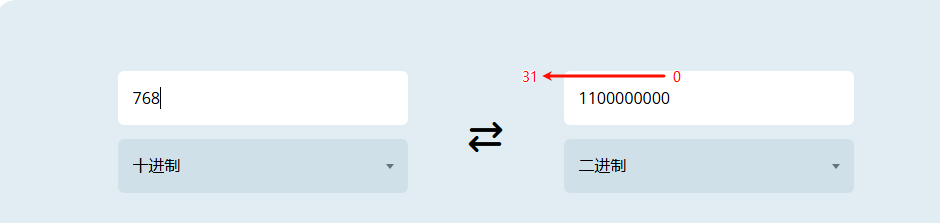
ChangeConfiguration usage example: For example, to turn off ground wire detection and relay sticking detection: value should be set to 768 (256+512).
Example of using GetConfiguration: For example, the obtained value is 768. Use a decimal-to-binary converter to convert the value to binary for viewing. Count from right to left. The first digit on the right is number 0. The number of digits with 1 is the number in the table, corresponding to the corresponding function.
To turn off the ground detection modification command:
Send command
[2,"55908aa6-330d-4d8b-a84a-547b0850169c","ChangeConfiguration",{"value":"256","key":"OEM_FaultMask"}]
Response from the stub (success)
[3, "55908aa6-330d-4d8b-a84a-547b0850169c", {"status":"Accepted"}]
3.13. How to use key:OEM_FunctionMask
System function control mask:
bit0: whether to enable the buzzer:
0: Enable buzzer
1: Turn off the buzzer prompt
bit1: whether to shield the CC function of the charging pile;
bit2: Whether the CP diode detection (-12V) of the charging pile is abnormal and enters the error state;
bit3: whether to shield the over-temperature current reduction function;
From right to left, they are bit0, bit1, bit2, bit3, bit4, bit5, bit6, bit7, bit8, bit9, bit10, bit11, bit12, bit13, bit14, bit15, bit16. Each bit can only be set to 0 or 1.
To turn off the ground detection modification command:
Send command
[2,"55908aa6-330d-4d8b-a84a-547b0850169c","ChangeConfiguration",{"value":"0x1","key":"OEM_FunctionMask"}]
Response from the stub (success)
[3, "55908aa6-330d-4d8b-a84a-547b0850169c", {"status":"Accepted"}]
3.14. How to view network information
Send command
[2,"cec46082-91b8-4492-afd6-24af84ab7873","GetConfiguration",{"key":["OEM_NetState"]}]
Response from the stub (success)
[3, "cec46082-91b8-4492-afd6-24af84ab7873", {"configurationKey":[{"key":"OEM_NetState","readonly":true,"value":"{\"connectivity\":\"WiFi\",\"wifi-rssi\":\"-43\",\"4g-rssi\":\"-1\",\"ccid\":\"\",\"imsi\":\"\",\"ip\":\"192.168.137.199\"}"}]}]
3.15. RemoteStartTransaction carries scheduling requirements
The scheduling configuration carried by RemoteStartTransaction can only be Txprofile. Setting other configurations will be invalid or reject.
3.16. How to modify the heartbeat message sending period?
Use the ChangeConfiguration command to modify the key: HeartbeatInterval. The value can be set in the range of 60 seconds to 86400 seconds.
3.17. Online upgrade API usage instructions
Before upgrading, you need to confirm the firmware status and hardware status. You need to upgrade the same firmware type as the current firmware of the charging pile. Otherwise, the upgrade may fail, or an abnormal error may be reported after the upgrade is successful.
All versions of firmware upgrade links support http links, and some of the latest versions of firmware support https and FTP links. If there is no requirement for the firmware upgrade link, it is recommended to use http connection upgrade. If you use https and FTP links to upgrade, you need to confirm whether the current firmware supports it.
When the upgrade starts, the charging pile will report the update status of the charging pile through FirmwareStatusNotification.req. In order to ensure that the background can monitor the upgrade progress, each FirmwareStatusNotification.req requires the background to return a response message in time, otherwise the charging pile will not be automatically charged after the upgrade is completed;
During the upgrade process, the maximum time interval for the stub to actively send FirmwareStatusNotification.req is 10 seconds. If it exceeds 20 seconds, the backend does not receive FirmwareStatusNotification.req. The backend needs to use TriggerMessage.req to actively trigger FirmwareStatusNotification.req reporting;
During the upgrade process, the backend can pull the key: GetFirmwareUpgradePercentages through GetConfiguration.req to check the firmware download progress;