7. Device Sharing
When your charging pile device needs to be used by multiple people, you can share this device with other accounts.
7.1. Share device to other accounts
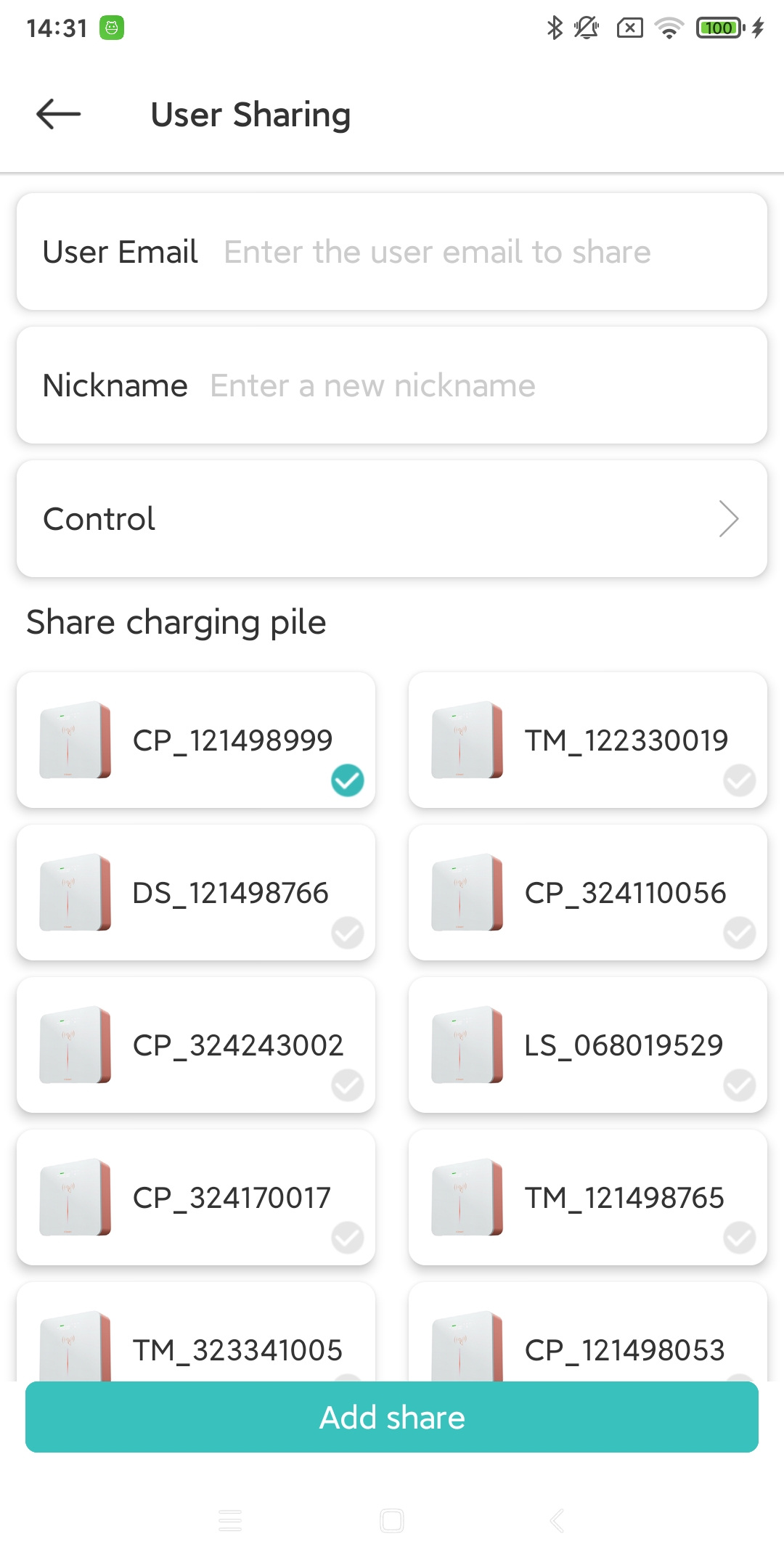
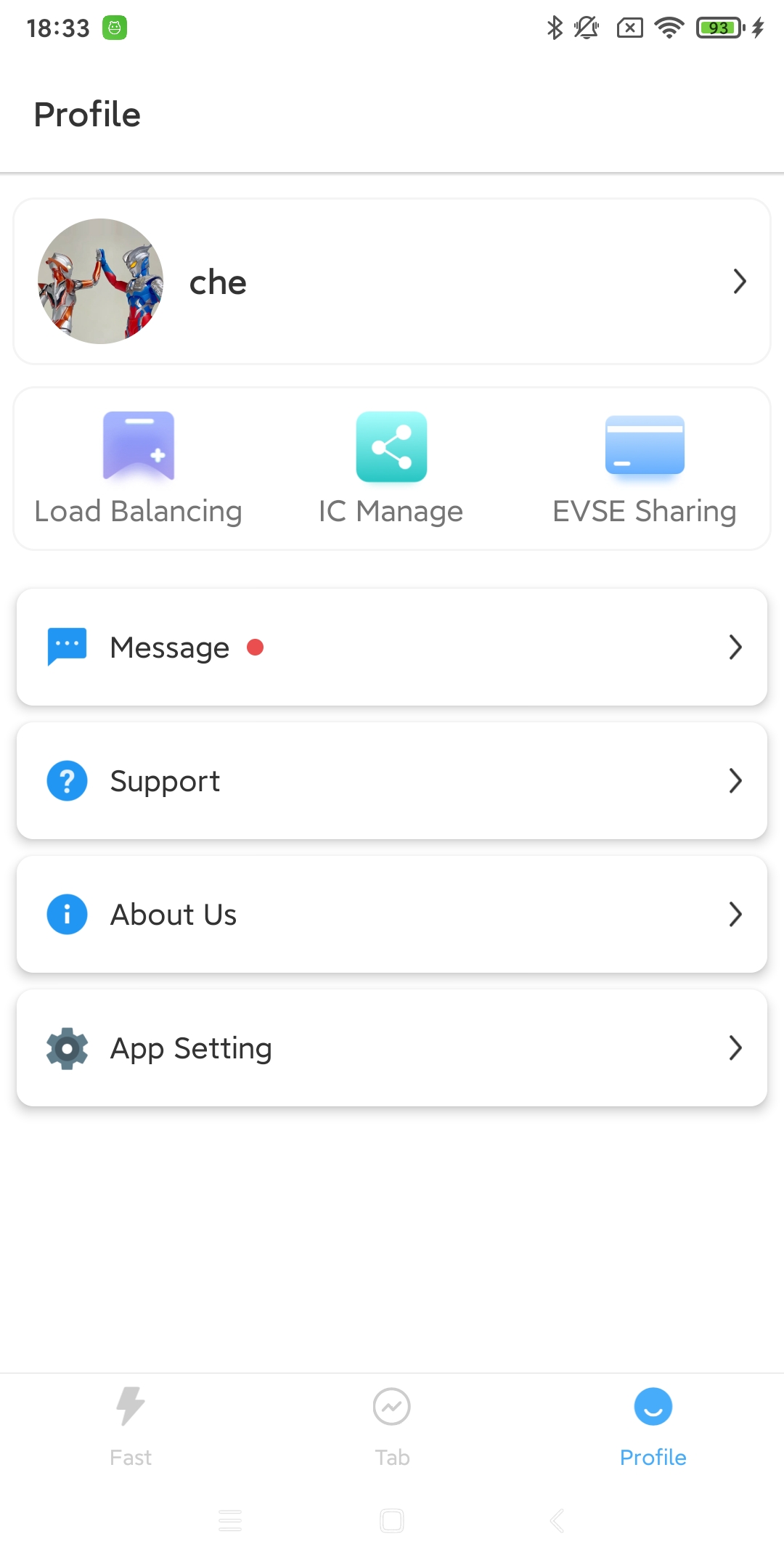
You can find this tab in the device’s “More” function page and click it to share. You can also click “Share” from the “My” page to share the charging pile device.
On the “More” page, click the Share tab to enter the target user’s email address and target device selection page. After entering, click OK to successfully share.
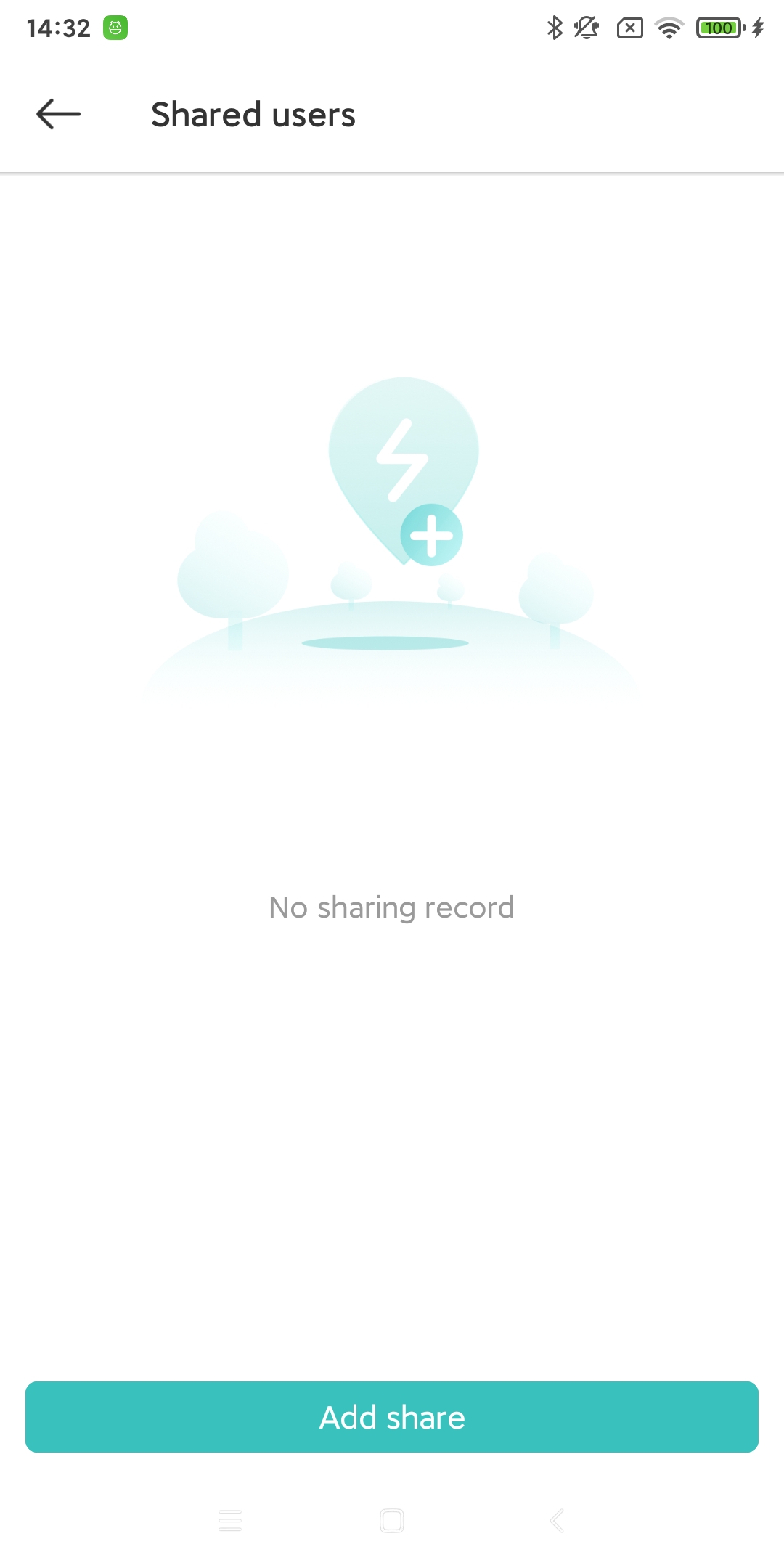
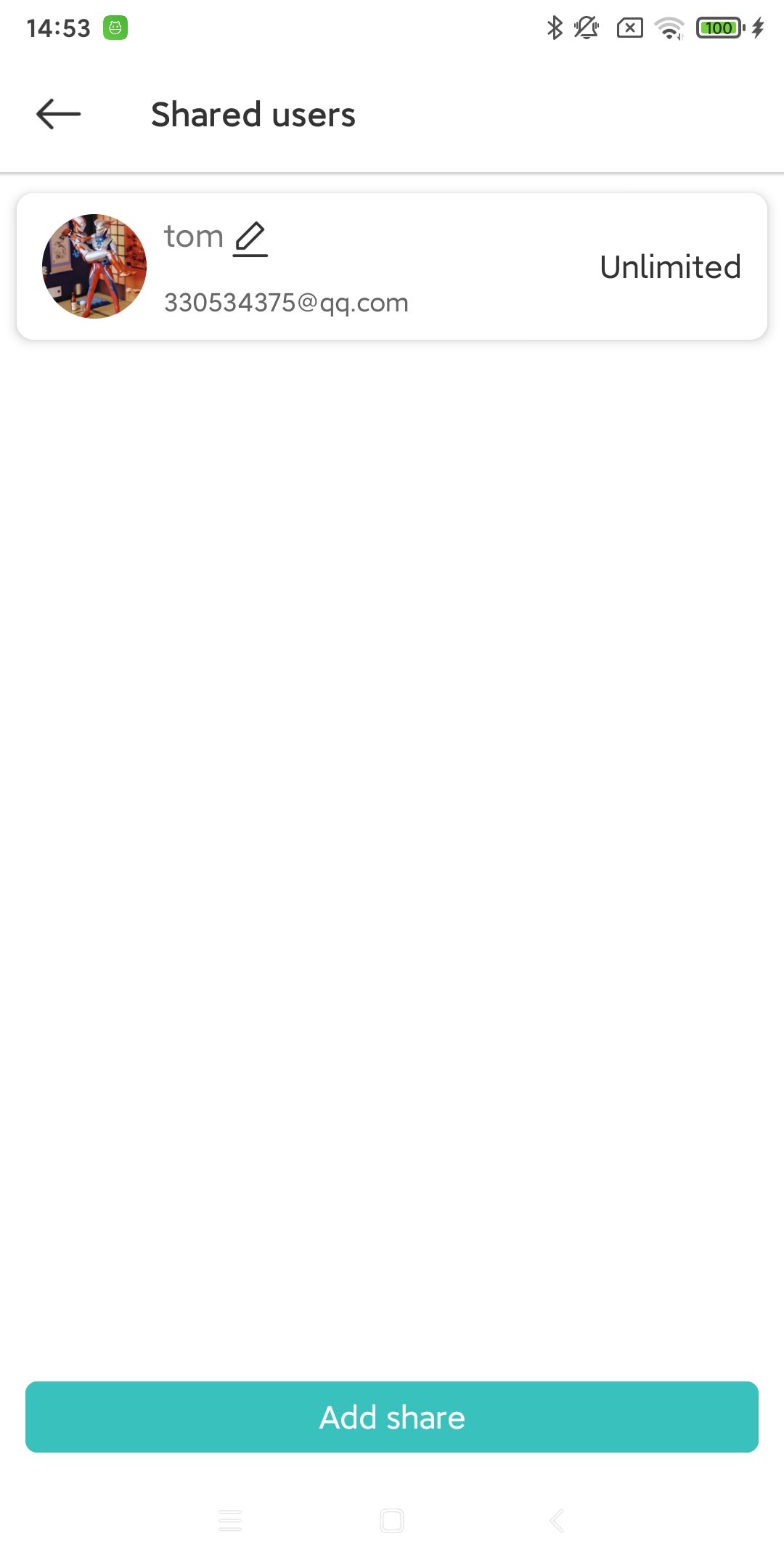
In the “Profile” page, click the Share tab. You can view, modify and delete existing sharing records. If you need to add a new share, click “Add”.
7.2. Shared device permission control
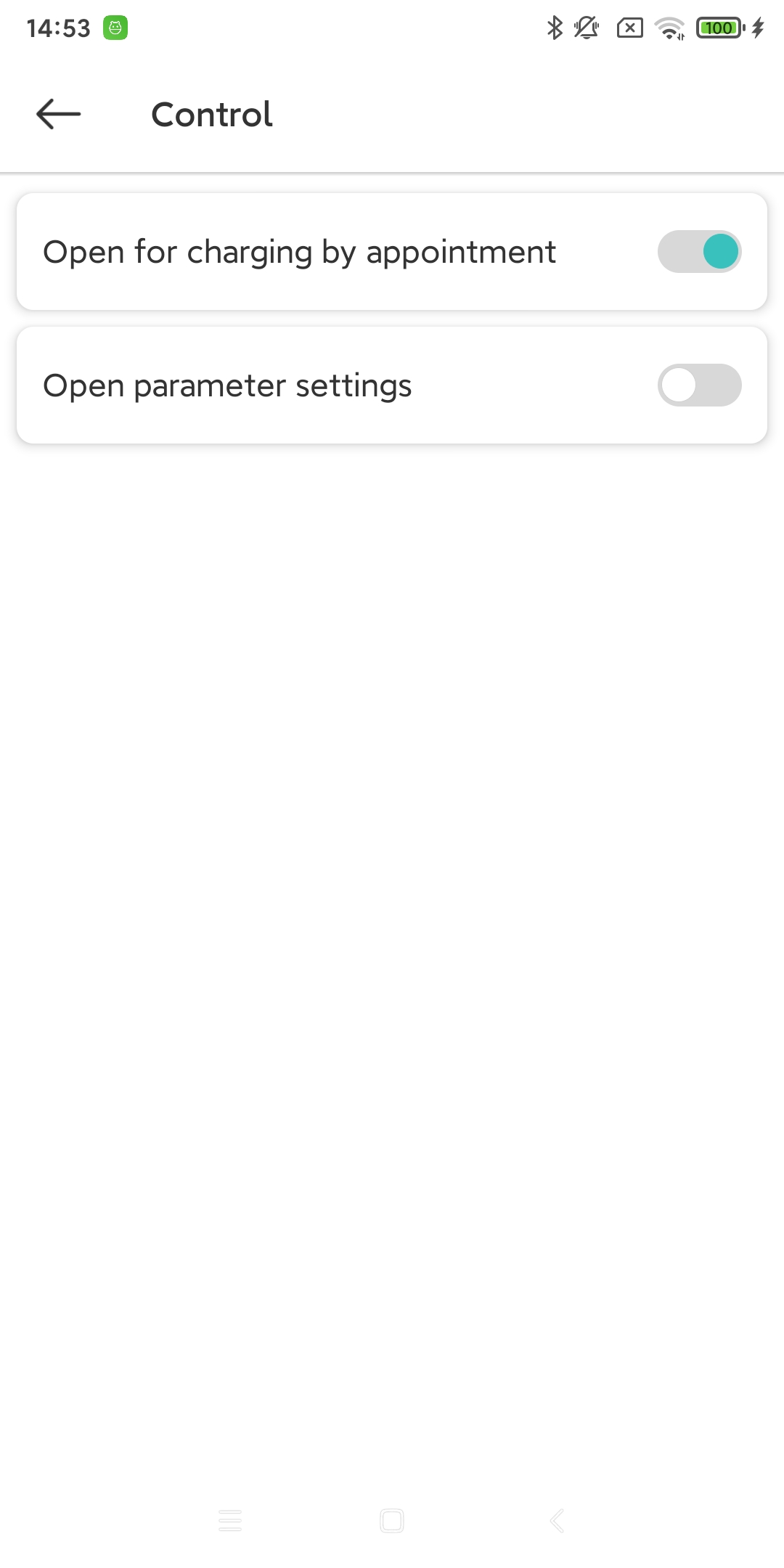
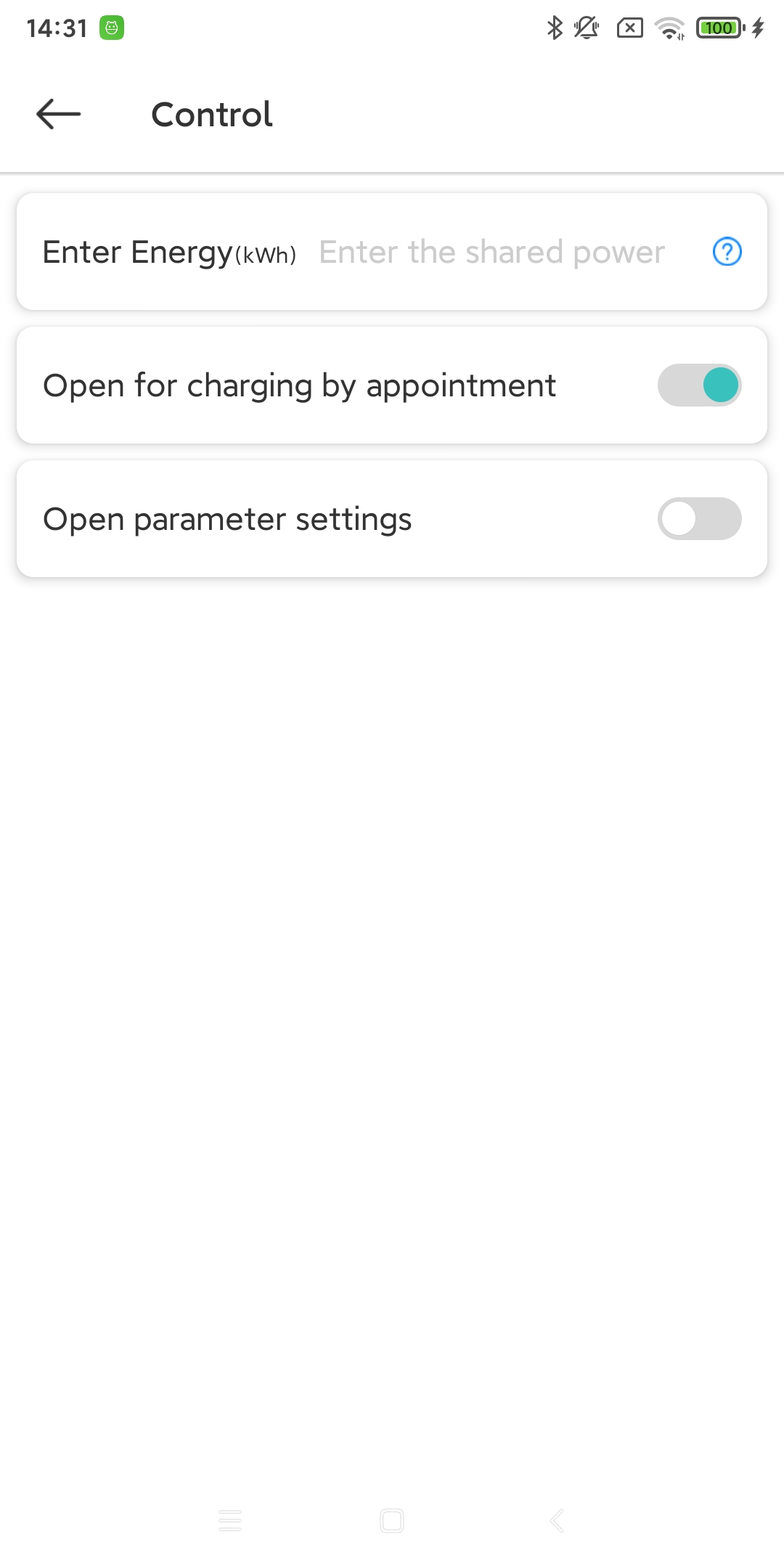
When sharing, click the ‘Control’ tab to set permission controls for this share. For example: how much kWh of electricity this user can consume with the device (if not entered, there is no limit by default). Enable/disable charging reservations (whether the shared user can use the reservation feature). Enable/disable parameter settings (whether the target user can adjust the charging pile device’s parameters).
Control permissions when adding a share (click “Control” when adding a share)
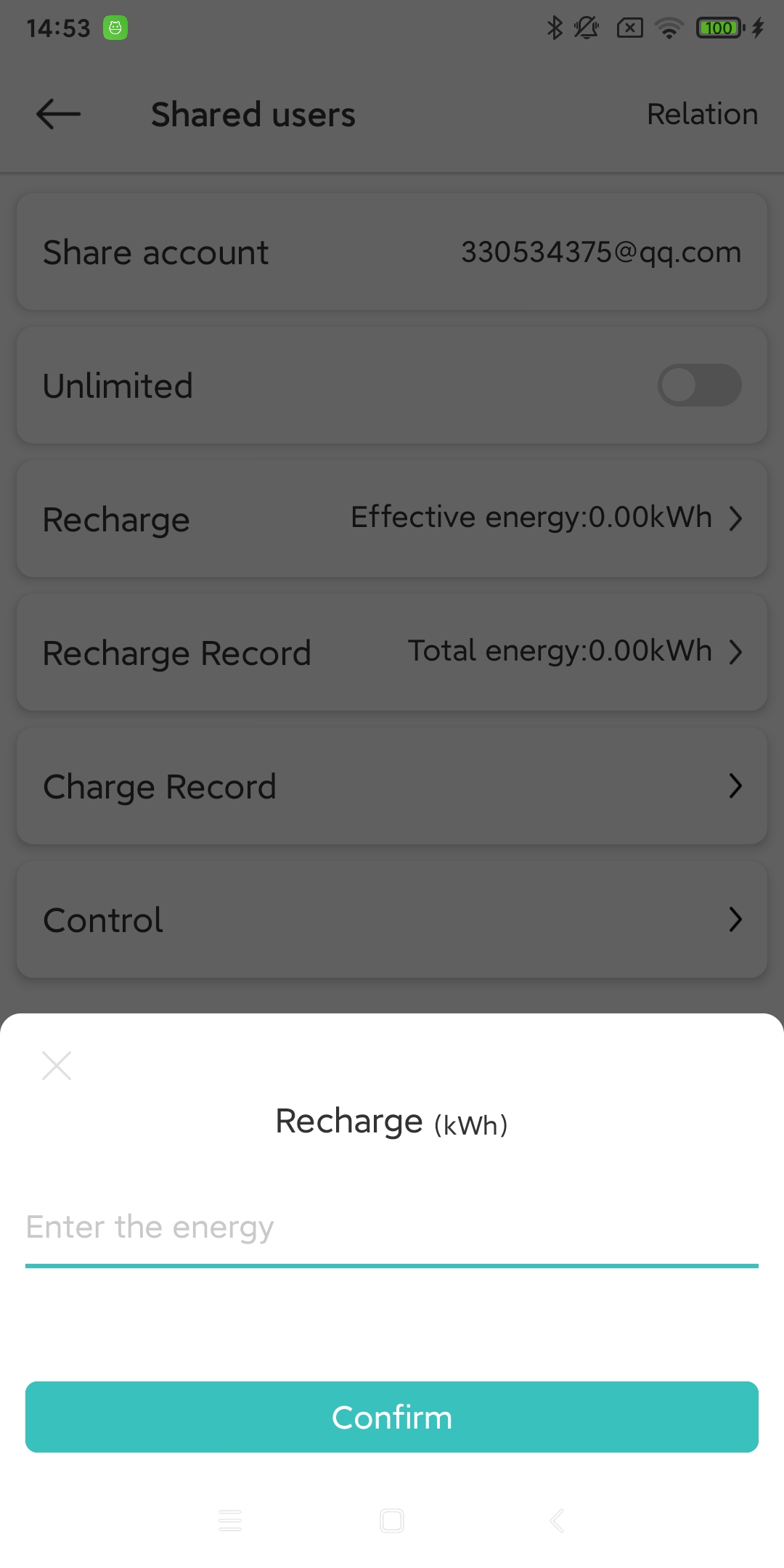
After sharing, perform permission control and record viewing (after sharing, in the list of shared users, click an item in the list)
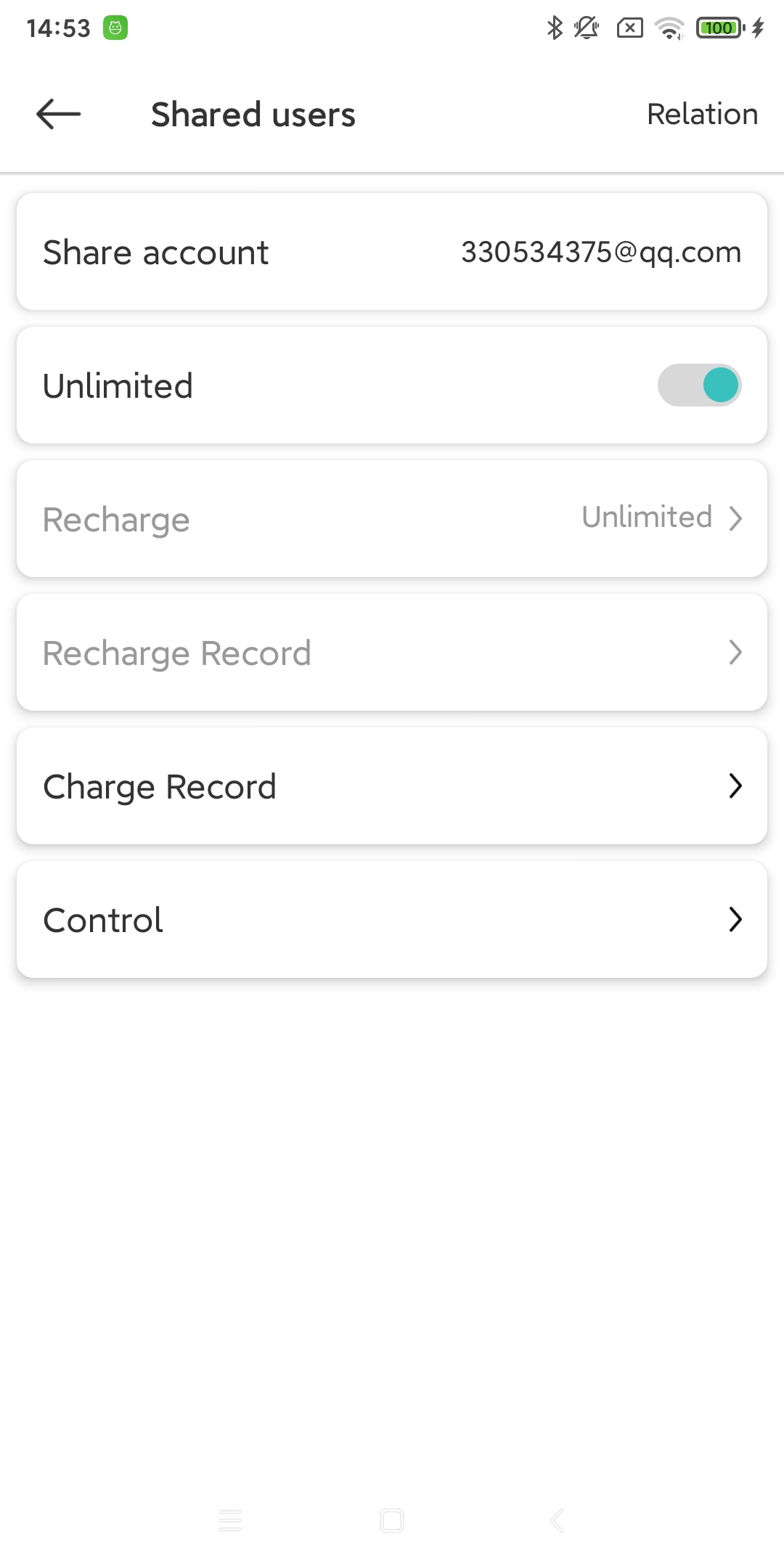
Permission Control - Turn off unlimited power
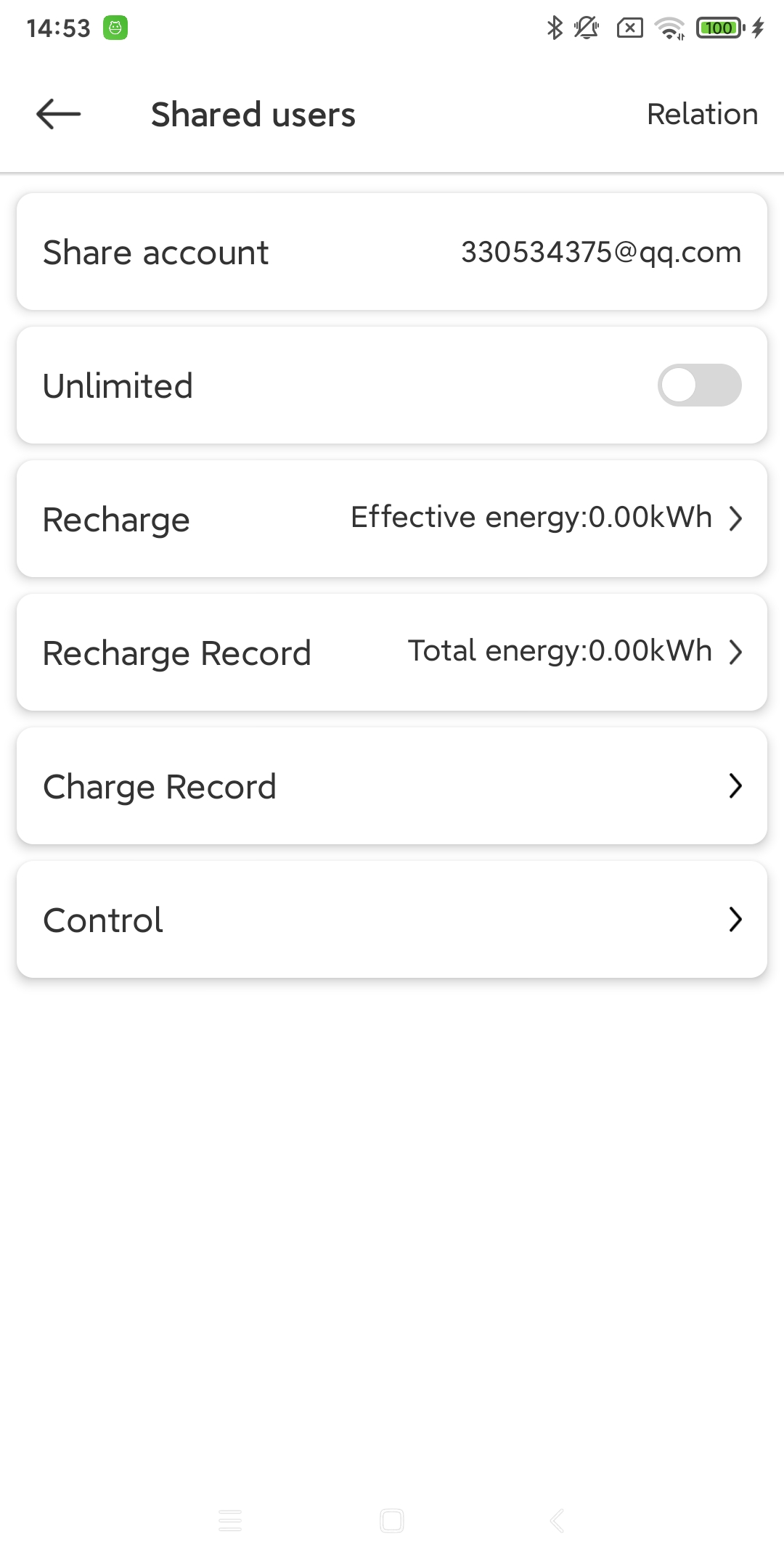
Permission Control - limit power usage (kWh) and view recharge power records
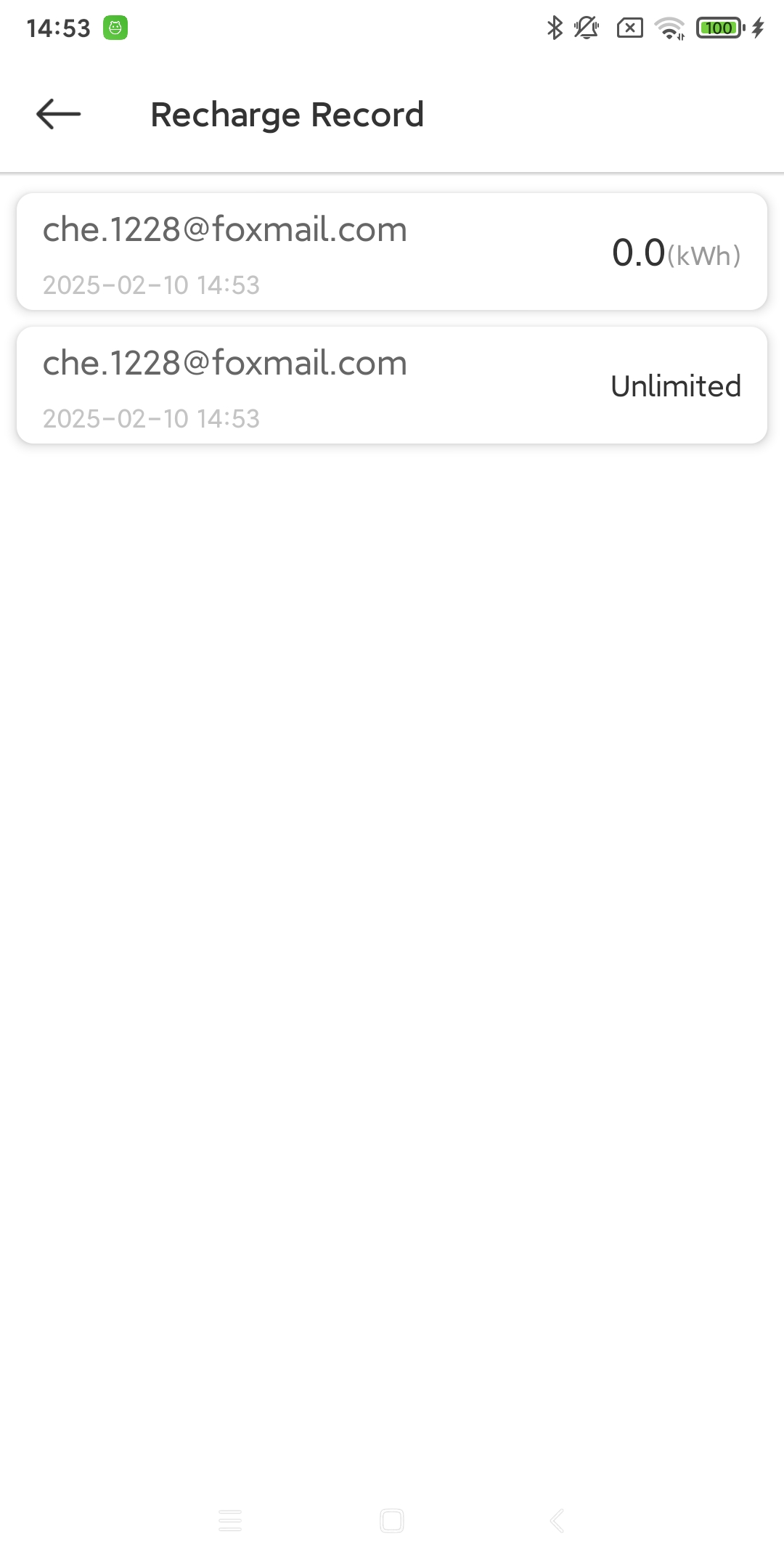
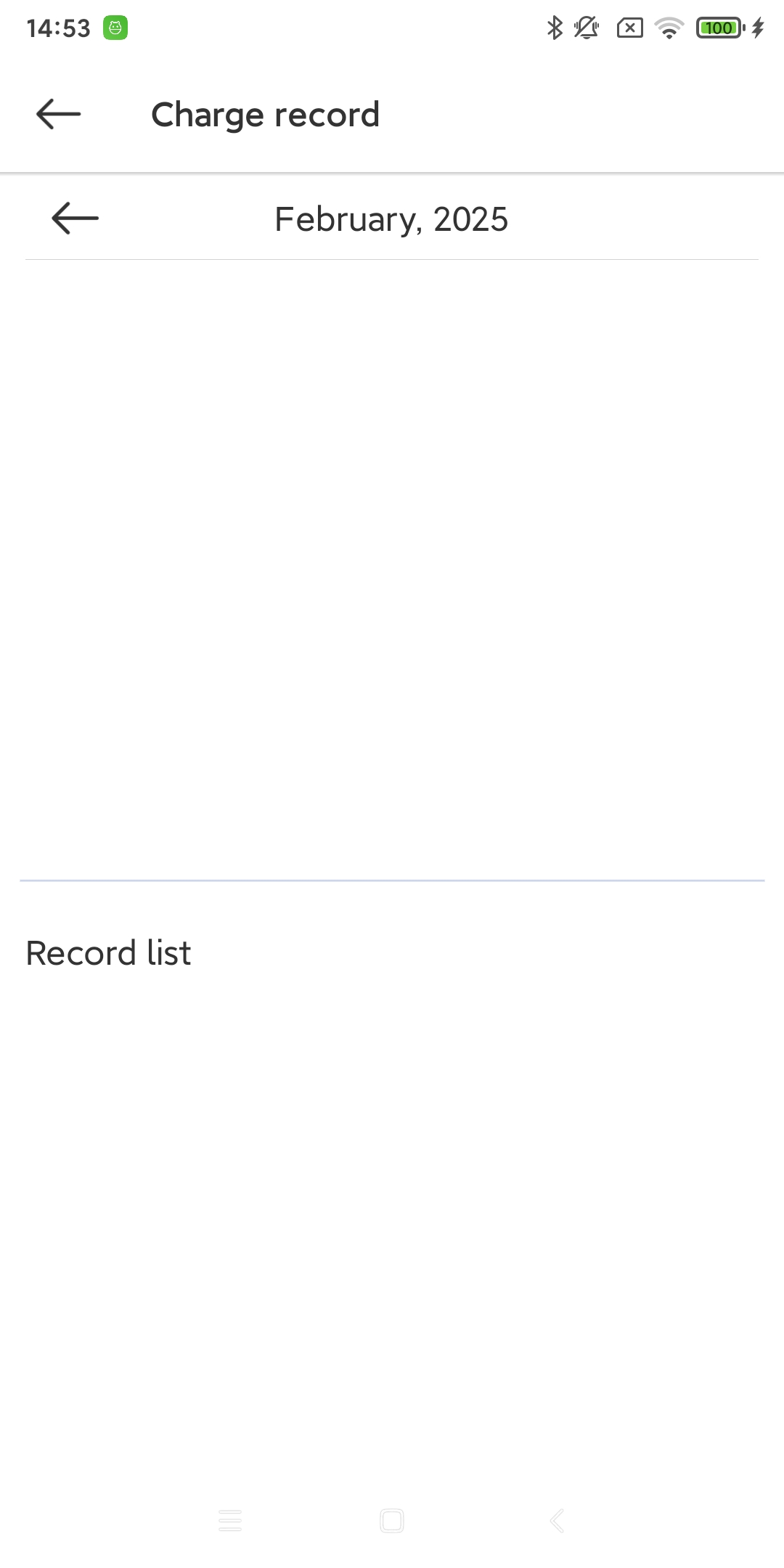
View the charging records of target users
Permission control - restrict the use of scheduled charging function or parameter adjustment function